Adding and editing sections
Sections are the first-level building pieces of a template or layout. Use them for major page regions: hero, post list, newsletter band, feature grid, footer area, and similar.
Unlike blocks, sections can be added directly to a template or layout. They usually include layout, spacing, color, feed, and container settings because they control a full region of the page.
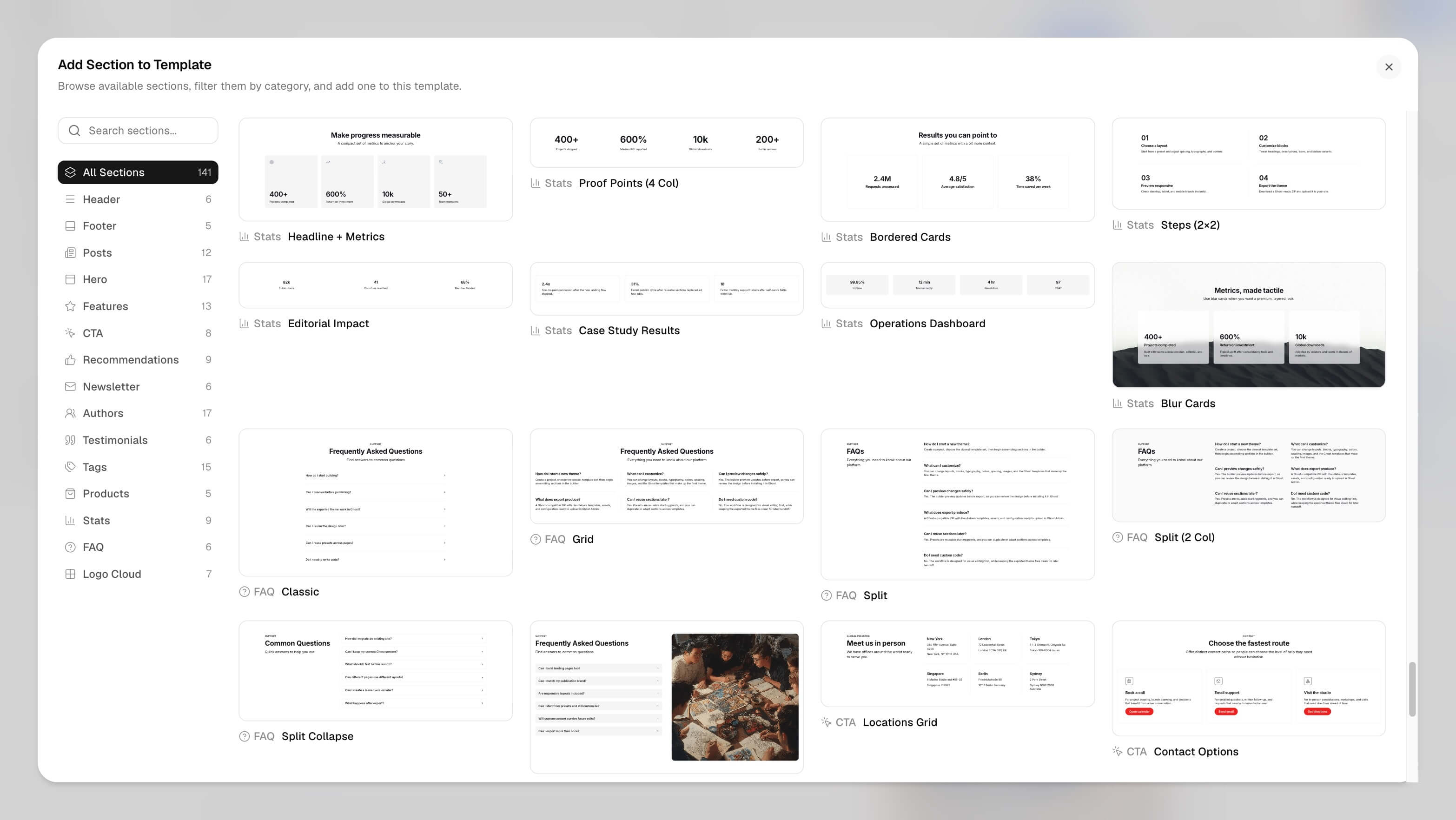
Add a section
- Open the template or layout you want.
- Use Add Section to Template or the insert control shown by the builder.
- Pick a section option. Some options are prepared starting layouts based on the same underlying section type, so the dialog can offer more choices without making you build every block from zero.
- Select the section and adjust its settings.
Reorder
Drag sections in the structure tree, or use keyboard shortcuts when a section is selected. Sections on a layout affect every page using that layout; sections on a template affect that template only.
Duplicate or delete
- Duplicate: context menu or ⌘/Ctrl + D when the section is selected and you are not typing.
- Delete: Delete or Backspace when selected and not inside a text field.
Section settings
Section settings control the region: layout style, spacing, background, colors, containers, feed source, and the blocks allowed inside. Exact controls depend on the section type.
Every section also carries the same shared settings, whatever its type:
- Section Width and Content Width set how wide the region and its content run.
- Min Height, Align, and Vertical Align place the content inside that region.
- Padding and Margin run from None through Huge, plus Custom for an exact value.
- Color Scheme and Color Mode override the global palette for this section alone. Color Mode is Inherit, Light, or Dark.
- HTML Anchor gives the section an id, so a button or a Ghost navigation label can link straight to it with
#section-id. Featured Media, Post Comments, Post Content, and Post Header do not offer it.
Some sections or settings require Pro. The builder shows tier badges and explains what is locked. See What requires Pro.
Download or publish
Structural changes need Download ZIP or Publish and an updated theme on Ghost.