Adding and editing blocks
Blocks are smaller pieces inside sections. They usually live on the second or third level of the structure. A section contains blocks, and some blocks can contain nested blocks.
Use blocks for the content and components inside a section: headings, text, buttons, cards, images, links, repeated items, and similar elements.
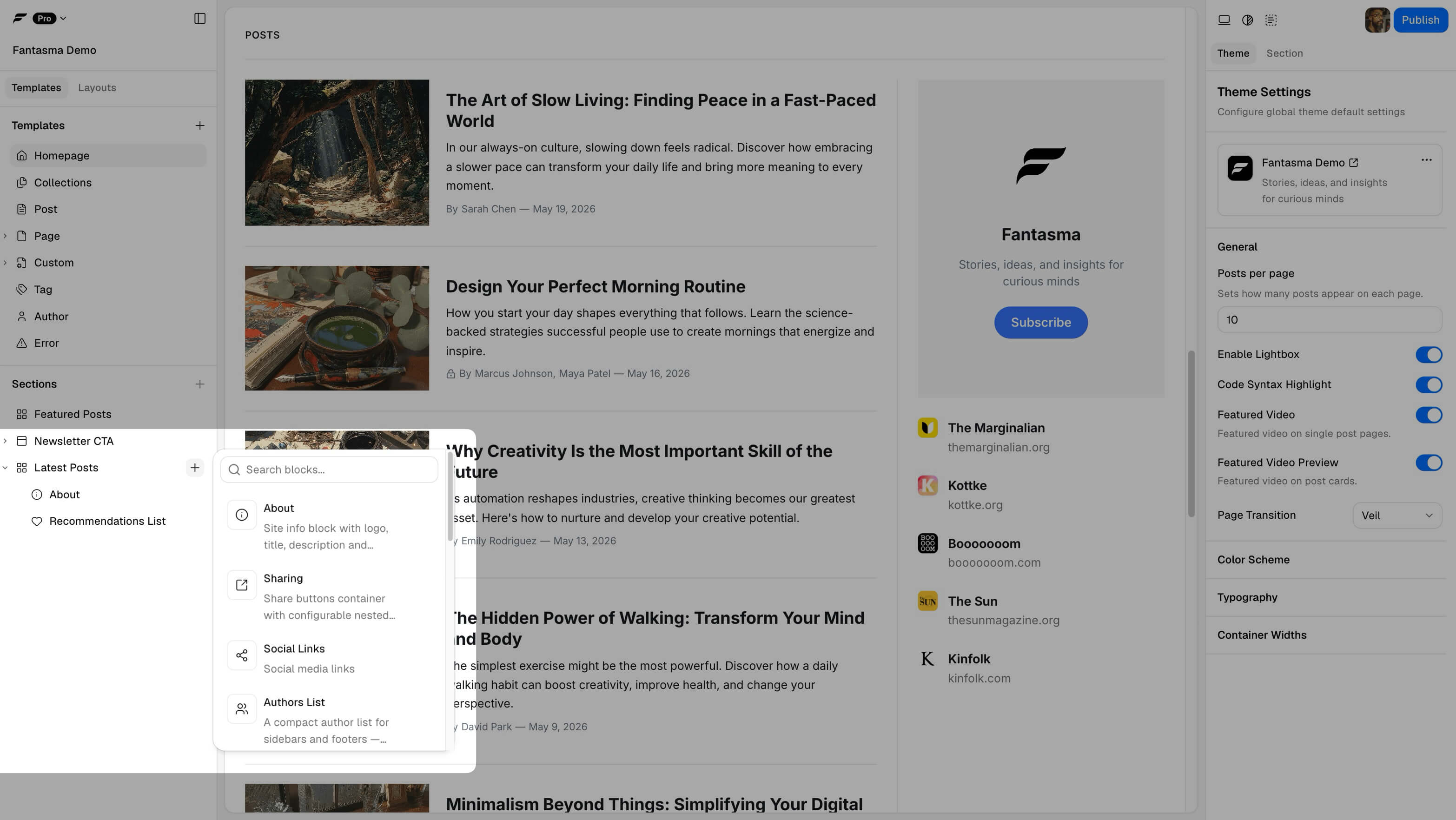
Where blocks can be added
You do not add blocks directly to a template. First add or select a section, then add blocks in the places that section allows. Some sections have a fixed block structure; others let you add, remove, reorder, or nest blocks.
If a block can contain child blocks, the builder shows an insert control for that nested level. If no insert control appears, that parent does not accept more blocks there.
Block settings
Block settings only control the selected block. A button block might control label, URL, style, and alignment. A heading block might control text and size. A card block might control image, title, and link behavior.
Broader layout and spacing usually belong to the section, not the block. If you want to change the whole page region, select the section instead.
Duplicate, move, or delete
Use the structure tree, context menus, or keyboard shortcuts when a block is selected. Some blocks are required by their parent section and cannot be removed; the builder disables actions that would break the section.
Download or publish
Block changes are theme changes. Download a new ZIP or publish again before expecting the live Ghost site to match the builder.